One of the most common tasks as a Tortal Administrator is helping a User reset their lost passwords. This guide walks you through the process from front to back, highlighting your responsibiliites an Administrator, your Users responsibilities, and other potential speedbumps to getting them back to training.
The password change and login process goes as shown below - keep in mind, whatever password you set for the user, they may be prompted to change it when they first log in using this process, if the "Force User to Rest Password on first Login" selection has been checked during Account creation.
This forced password-change setting can be turned off, if you prefer, which will allow them to set their own password at their convenience under My Information >> Edit Profile
For the sake of this article we will follow as if this process is in place. This is how the process works:
1. User logs in at your Tortal Learning Center URL (ex: training.tortal.net) with their provided username and password.
2. When they do this, they'll receive the following notice:
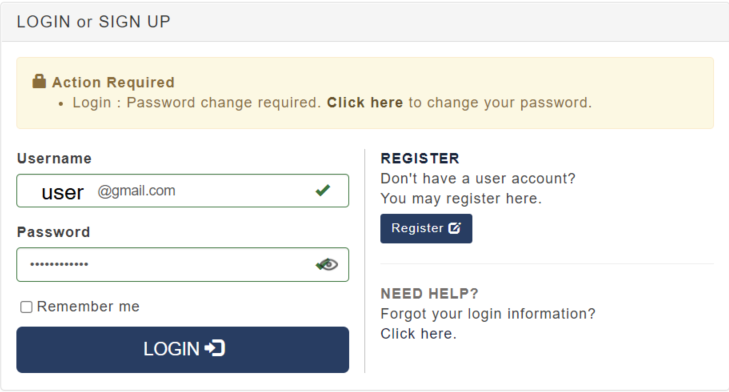
3. They need to click the "Click here to change password link"
4. This will launch the following popup where they will need to enter their username
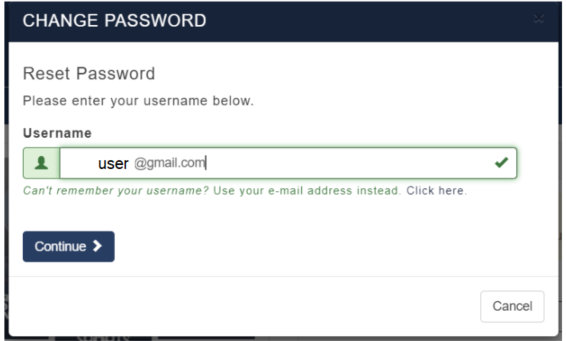
5. When they enter their username and click Continue, they'll receive a notice that looks like this:
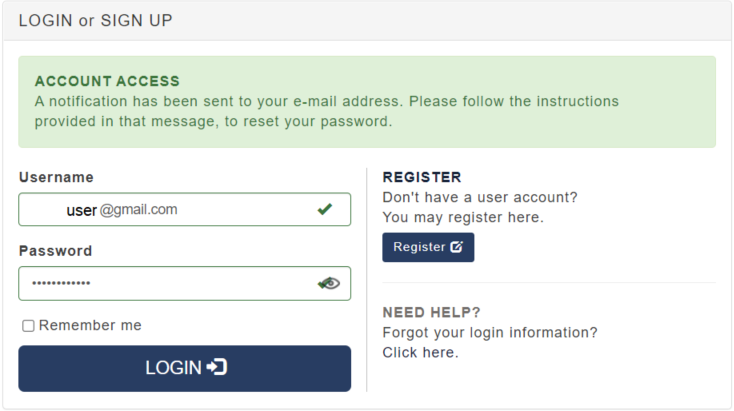
6. They'll also receive an email that looks like this:
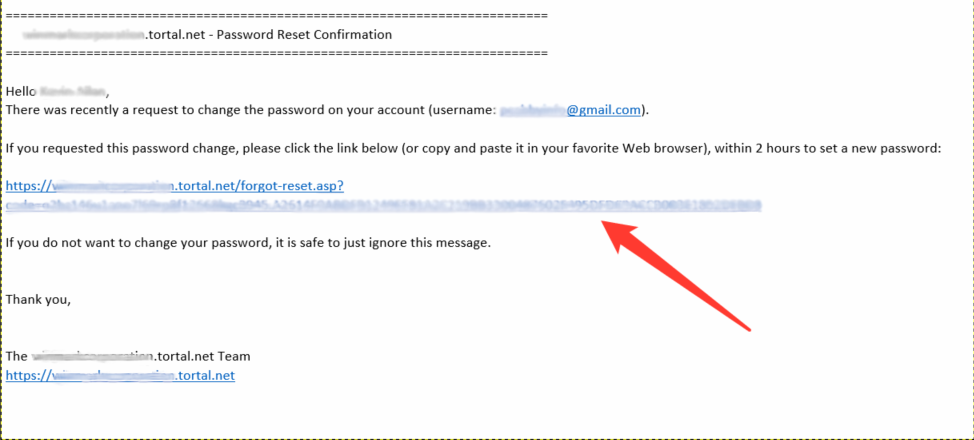
6. They'll need to click the link indicated by the red arrow, which will lead them here:

7. This is where they enter their new password and confirm that password by re-entering it. When they do that, they will be led here, where they can click Continue:
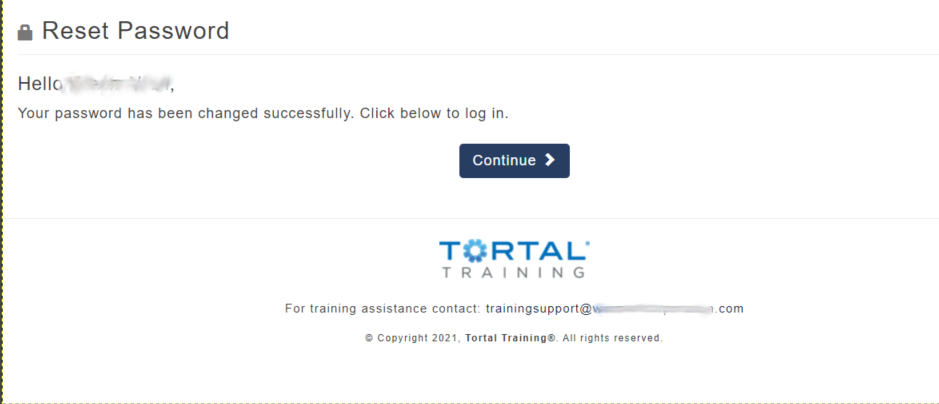
8. When they click Continue, they'll be led back to the login screen to log in with their newly-set password:
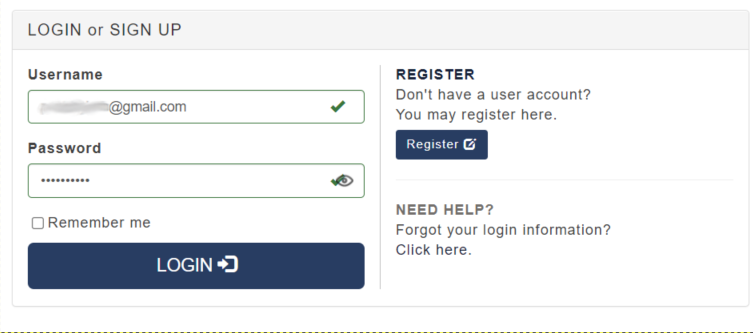
The user must follow this entire process to avoid the error message from login screen.
In the Password screen, if the "Force user to Change Password on next login" feature is checked, it does not matter if an admin resets a Users password - they will still be prompted to change to a password of their choice when they first log in.
The only way to avoid this is to disable the required password change by using the "Edit a User Wizard" and allow them to update their passwords at their convenience under My Information >> Edit Profile.
Note two more important things:
1. Admins will not be able to log in as a user until they have set their own password
2. Usernames and passwords are case-sensitive and must be entered exactly as provided in the source data that was loaded